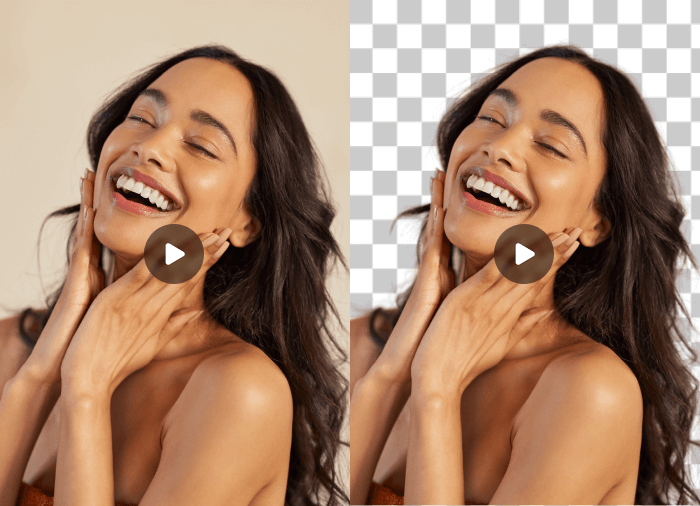
Airbrush

start icostart icostart icostart icostart ico

Download for 7-day Free Trial

smart banner
HomeAll Tools
Blur Background

Blur Background – Create a Blurred Background with Airbrush

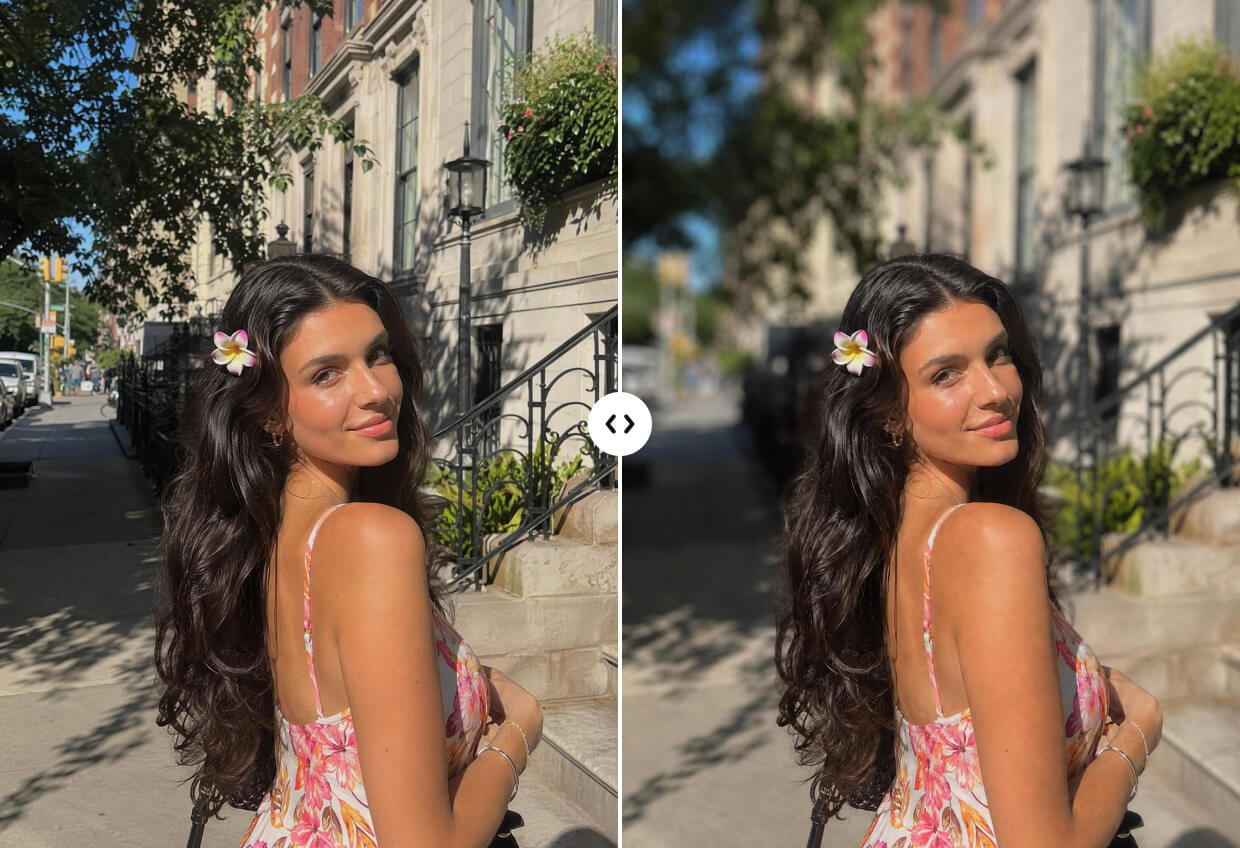
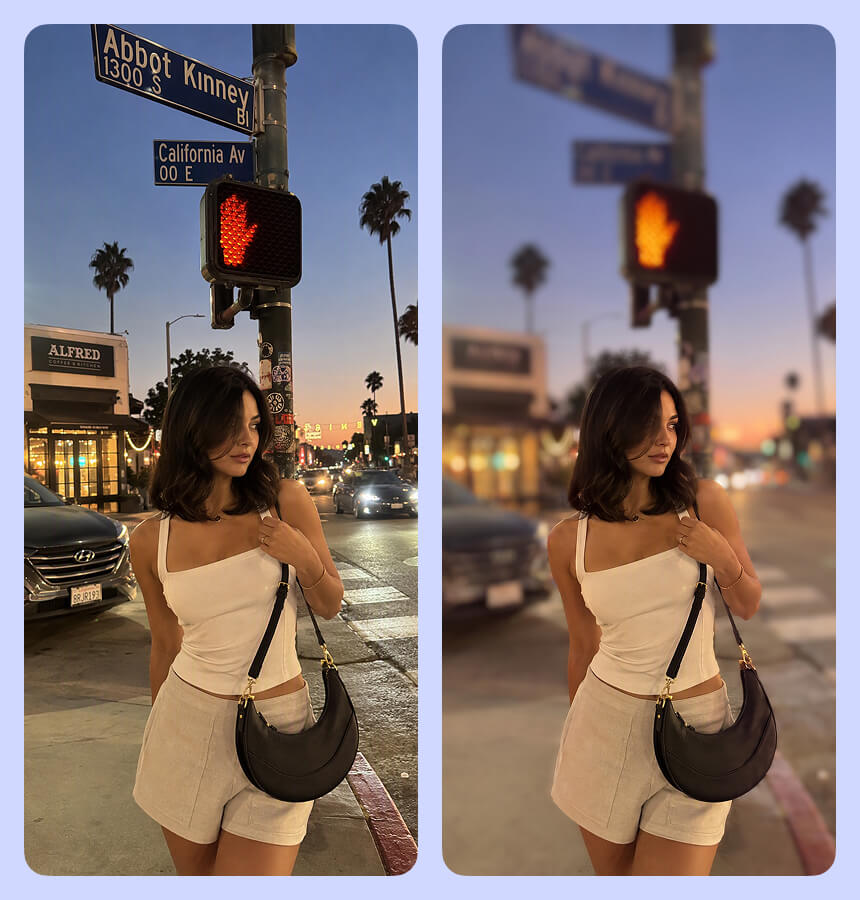
Use Airbrush Blur Background to keep your subject in focus while softening distracting areas around it. Use Auto or Manual mode, control the blur intensity, and choose from different effects to create a blurred background that suits your photo.

Blur Background
Drag and drop Image here
0 free use left

Airbrush Studio

Switch to Airbrush Studio on desktop for advanced control and unlimited exports.

Mac OS
Windows
Blur Background

Switch Between Auto and Manual Blur

Use Auto mode when you want Airbrush to handle the photo background blur, or switch to Manual mode for hands-on control. This flexibility lets you work quickly on simple shots or refine more complex images yourself when the selection needs extra attention.
Blur Background

Choose from Different Blur Effects

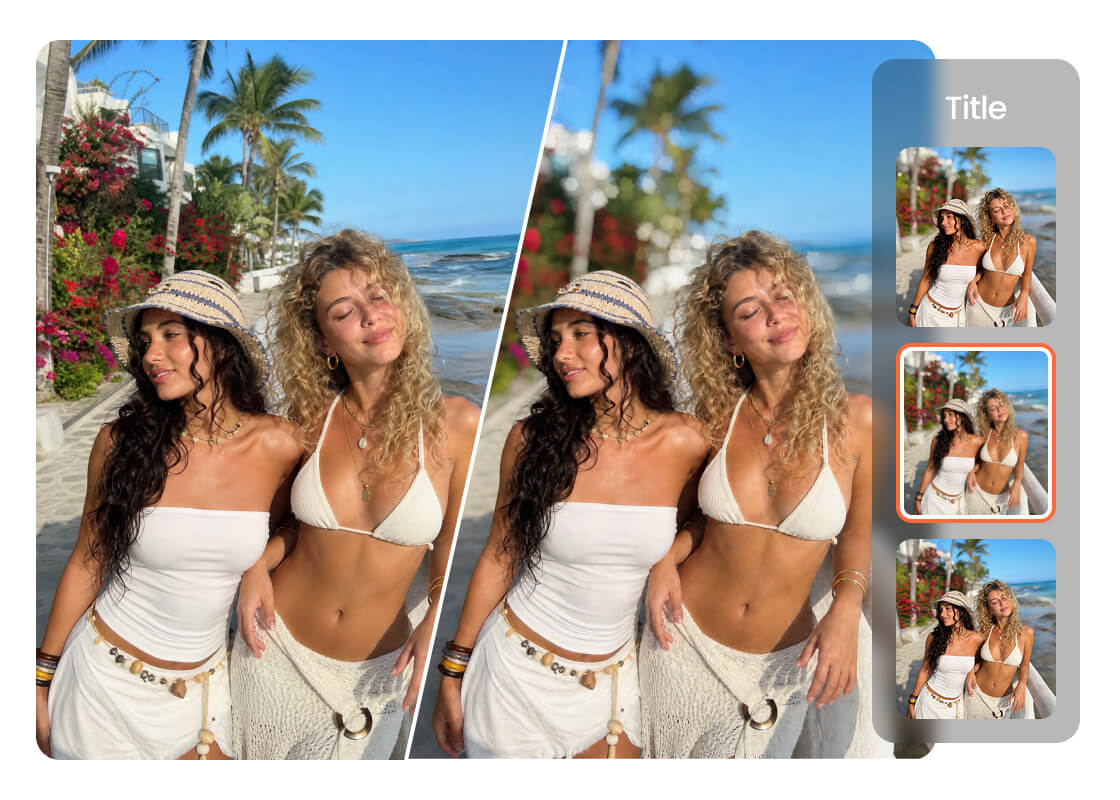
Go beyond a standard blurred background with Flare, Dynamic, Hexagon, Swirl, Heart, Mosaic, Drop, Soft Focus, and Radial options. Each effect changes the visual character of the image, giving you more ways to match the mood or purpose of your edit.

Use Cases of Blur Background

Blur Background
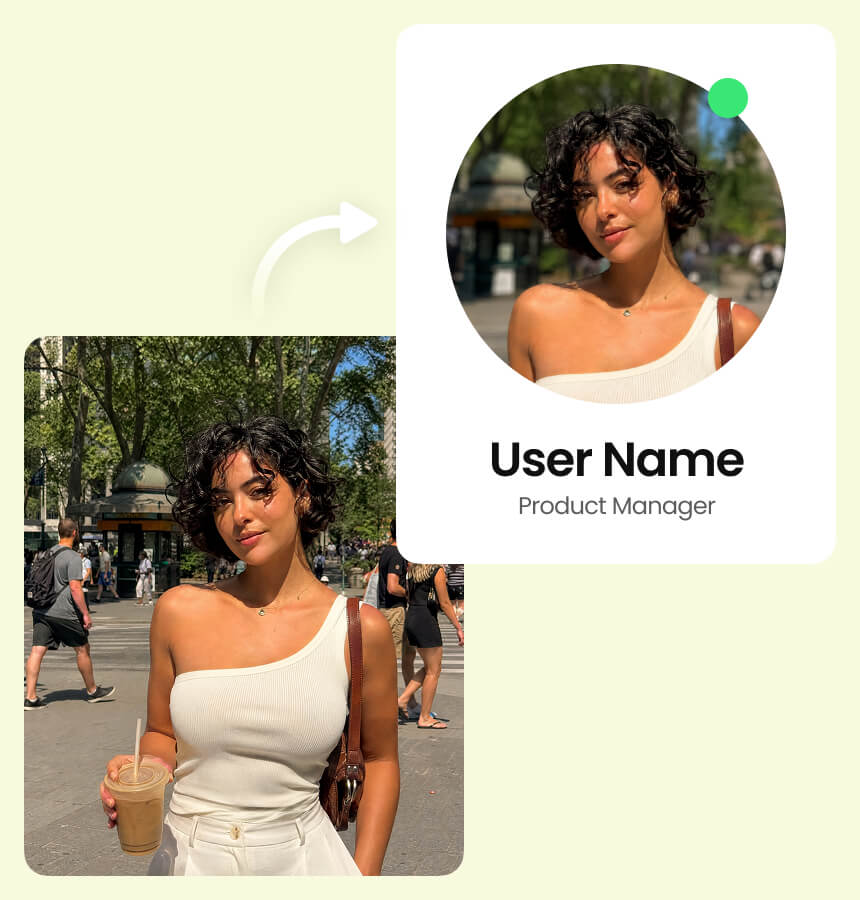
Give Portraits and Headshots a Cleaner Focus

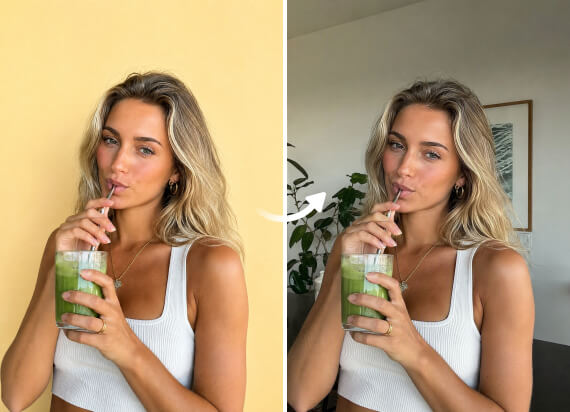
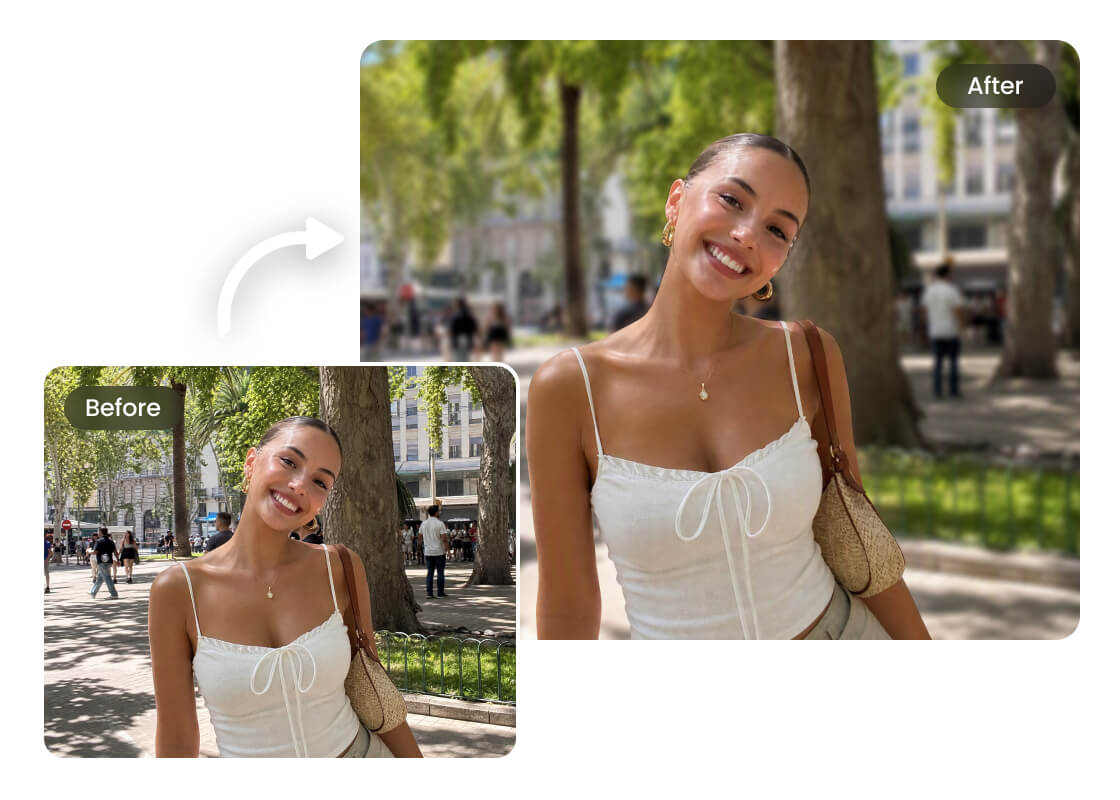
Turn casual portraits into polished profile photos by reducing busy scenery behind the person. A soft photo background blur draws attention to facial features and works well for headshots, professional profiles, resumes, and personal branding.

Blur Background

Give Portraits and Headshots a Cleaner Focus

Turn casual portraits into polished profile photos by reducing busy scenery behind the person. A soft photo background blur draws attention to facial features and works well for headshots, professional profiles, resumes, and personal branding.
Blur Background

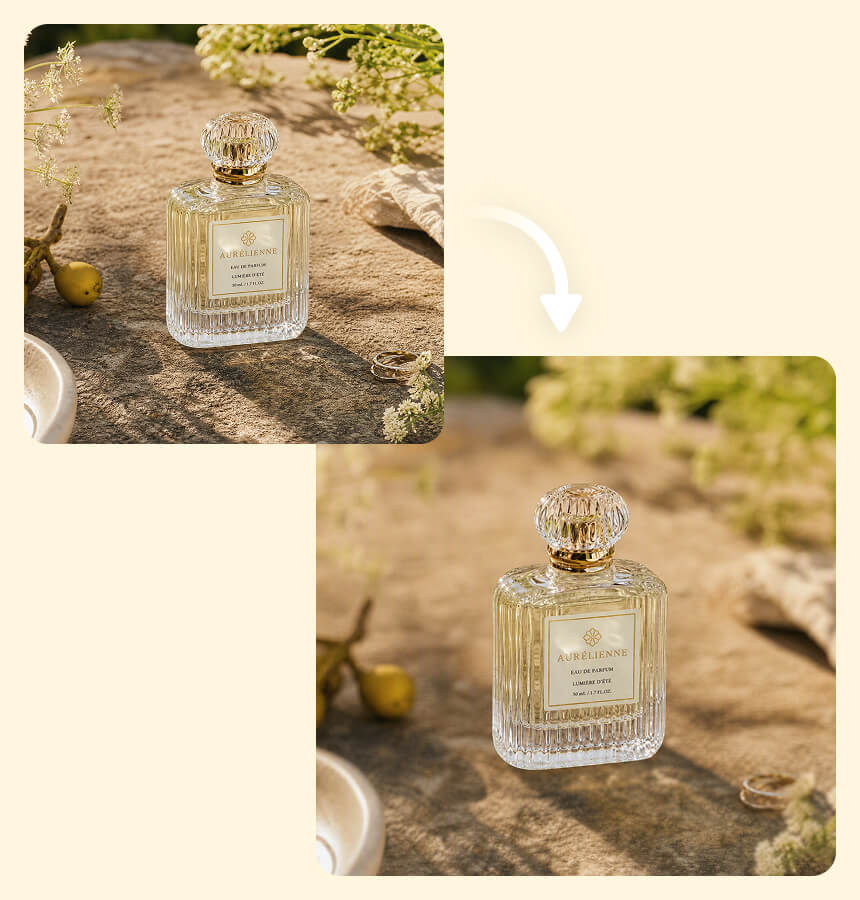
Keep the Focus on Products, Not the Background

Give product shots a cleaner presentation by using a blurred background to reduce competing details around the item. This helps products hold attention in store listings, promotional graphics, social posts, and campaign images without changing the main subject.

Blur Background

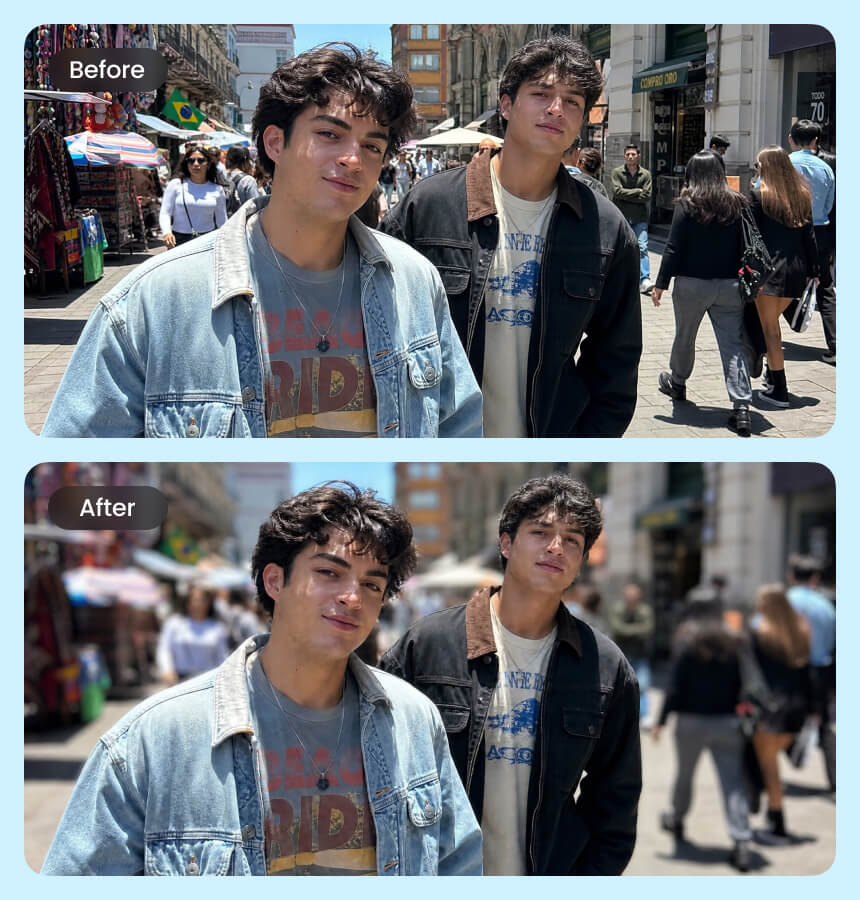
Blur People and Distractions in the Background

Busy streets, events, and travel shots often include people or objects competing for attention. Use Manual mode to blur the background of a photo selectively, softening passers-by or visual clutter while leaving the important area untouched.

Blur Background

Hide Sensitive Details Before Sharing a Photo

Protect information you do not want visible by applying Mosaic or manual blur to selected areas before sharing an image. Use it to obscure faces, signs, screens, addresses, or other private details while leaving the rest of the picture clear and usable.

How to Blur Background with Airbrush?

1

Upload Your Photo

Choose the photo you want to edit and upload it to the Airbrush Blur Background tool. Your image will open in the editor, ready for background blur.

2

Customize the Blur

Choose Auto mode to blur the background or Manual mode to work on selected areas. Adjust the intensity, try different effects, and use Add Blur or Eraser Blur for finer control.

3

Preview and Download

Review the result and make any final adjustments to the blurred areas. Once the subject and background look right, download your finished photo.

1Upload Your Photo

Choose the photo you want to edit and upload it to the Airbrush Blur Background tool. Your image will open in the editor, ready for background blur.

2Customize the Blur

Choose Auto mode to blur the background or Manual mode to work on selected areas. Adjust the intensity, try different effects, and use Add Blur or Eraser Blur for finer control.

3Preview and Download

Review the result and make any final adjustments to the blurred areas. Once the subject and background look right, download your finished photo.

User Reviews

I mainly use Airbrush for my product photos. The blur background is easy to adjust, and I like that I can clean up small areas manually when the automatic result misses something around the product.

- Emily Carter

I tried Airbrush on a few portrait photos taken with my phone. Soft Focus worked really well on one where the background was quite messy. I reduced the blur slightly and the final photo looked much more natural.

- Jason Miller

I had a photo from an event with a few people visible behind me. I used the manual blur in Airbrush just on those areas instead of blurring the whole background. That was exactly what I needed.

- Nadia Khan

I mainly use Airbrush for my product photos. The blur background is easy to adjust, and I like that I can clean up small areas manually when the automatic result misses something around the product.

- Emily Carter

I tried Airbrush on a few portrait photos taken with my phone. Soft Focus worked really well on one where the background was quite messy. I reduced the blur slightly and the final photo looked much more natural.

- Jason Miller

I had a photo from an event with a few people visible behind me. I used the manual blur in Airbrush just on those areas instead of blurring the whole background. That was exactly what I needed.

- Nadia Khan

Frequently Asked Questions

Upload your existing photo to Airbrush, blur background tool, and choose Auto mode to separate the main subject from the surrounding area. You can adjust the blur intensity, try different effects, or switch to Manual mode to refine specific parts of the image.

A blurred background can reduce distractions and bring more attention to the main subject. It can also add visual depth to portraits, product shots, headshots, and everyday photos where the original surroundings compete for attention.

Yes. Airbrush lets you use Manual mode to apply blur to selected areas, making it useful for softening people, objects, signs, or other distracting details without applying the same effect to the entire photo.

Yes. You can use Airbrush to blur photo backgrounds from a supported mobile device. Upload your image, choose your blur settings, preview the result, and save the finished photo when you're happy with the edit.

Yes. Airbrush includes an adjustable blur intensity control, so you can choose between a subtle background blur effect and a stronger blurred look depending on the subject, distance, and style of your photo.

Airbrush provides multiple options, including Flare, Dynamic, Hexagon, Swirl, Heart, Mosaic, Drop, Soft Focus, and Radial. This gives you more ways to customize the look instead of using the same blur style for every image.

Yes. Switch to Manual mode and use Add Blur to apply the effect where you want it. If part of the image becomes blurred that you want to keep visible, Eraser Blur lets you refine that area.

Airbrush is designed to keep the selected subject clear while applying the effect around it. You can also use Manual mode and Eraser Blur to refine areas around the subject if the automatic result needs adjustment.

Airbrush provides free daily uses for Blur Background. You can upload a photo, apply your preferred blur, adjust the result, and download the edited image within the available free usage limit.

Airbrush supports common image formats such as JPG, PNG, and WEBP, so you can upload photos from different devices and edit their backgrounds without converting the file first.

Blur Your Photo Background Now